Main Menu Navigation
The navigation bar appears along the left side of all pages. The selections may differ between project screens and company screens. You will only see the options for which you have permission and which have been enabled by the Administrator.
The following menu items are displayed on every page in Squish:
Company Navigation
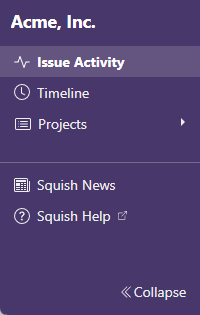
- Company name - Select the company name to return to the Issue Activity Page, from anywhere on the site.
- Issue Activity – This is the default home page for the company. This page shows the recent activity for issues across the company.
- Timeline – The company timeline displays a list of changes, made by either any user or by a specified user, across projects within the company. To change the information displayed, open Timeline Filters in the top action bar and enter values in the From and To fields to select the date. Select the user whose updates will be displayed. Mark boxes to show submits, show updates, show resolved, and include wiki in the timeline. Select Update. Grouped by date and organized by time, each change you have made is displayed along with the project it was made in, the type of change and the fields changes (where applicable). Only Admins can see data for users other than themselves.
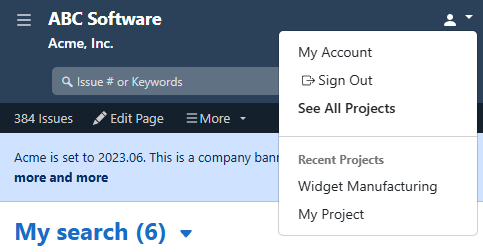
- Projects – Select the link to open a dropdown that will display any other recent projects for which you have permission to view. There is also a link to see all projects in the company, depending on your viewing permissions, and, where applicable, other companies to which you belong.
General Navigation
- Squish News – Select this to see news and announcements from the Squish development team.
- Squish Help – Select on the link to open the help system.
- Collapse – Select this to collapse the main menu to icon-width to allow more space within the main content.
.
Project Navigation
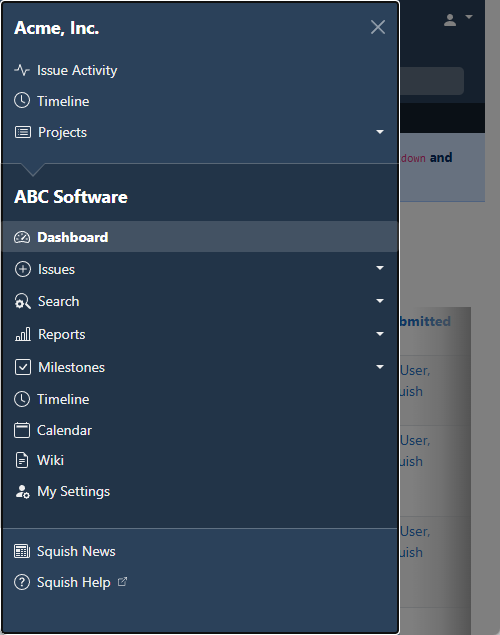
Select the project name to open the Project Navigation menu and go to the current project dashboard. The following menu items appear; some only appear if enabled by the Project Administrator.
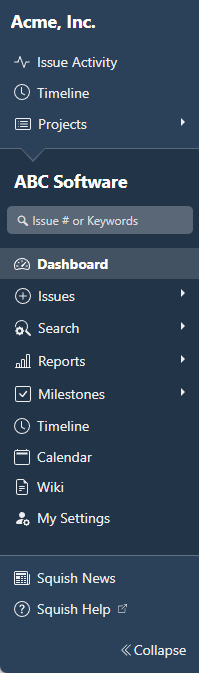
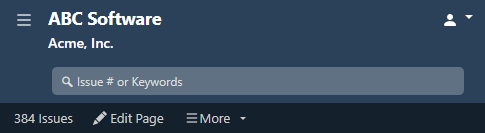
- Project name - Select the project name to go to the current project dashboard.
- Search Field - Key in a term or issue number to search on and hit the Enter key to begin the search. Alternatively, you can begin typing a value and select from the suggested search terms that appear dynamically.
- Dashboard –This is the default home page for projects. It contains searches either placed by default by the Squish app or the project manager, or custom search results you can choose by editing the page.
- Issues - The Issues menu contains links for each type of issue that exists in the project. Select the link for the type of issue you would like to submit. For some users, it will also contain “Create/Modify Issues” subsection which contains Import Issues and/or Recurring Issues, depending on permissions. For some users, this link will be called “New Issue” and it will be a direct link to submit the issue type available for that project.
- Search - The Search menu contains links for saved searches, managing your saved searches, recent searches, and public searches. Select a link to execute a search. Select New Search to go to the Search page.
- Reports - The Reports menu contains links for statistical reports. Select the links in the menu to go to the page where you can run the associated Report.
- Milestones - The Milestones menu shows a list of the active milestones.
- Timeline - The Timeline menu item in the project navigation functions similarly to the company timeline but narrowed down to changes made within the current project.
- Calendar - The Project Calendar is available when project management is enabled.
- Wikis - Takes you to the project wiki.
- My Settings – Select to update project-specific settings for yourself, such as the notifications you will receive for the project, or different features you may or may not prefer to view by default in issues for this project.
Action Bar
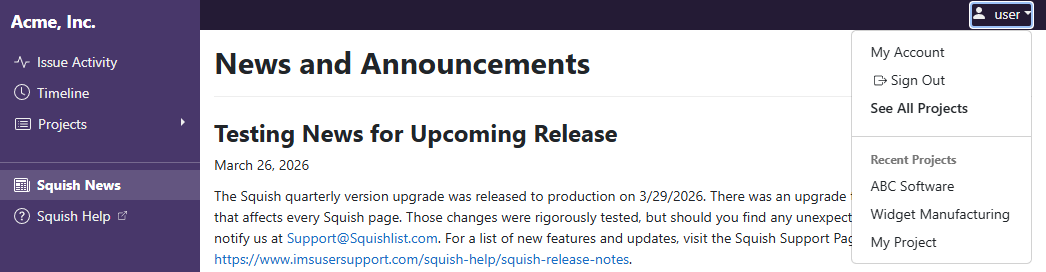
On the top right of every page, the action bar contains username actions. Select this to sign out, access your account profile or, depending on permissions, view things such as recent projects or other companies to which you belong.
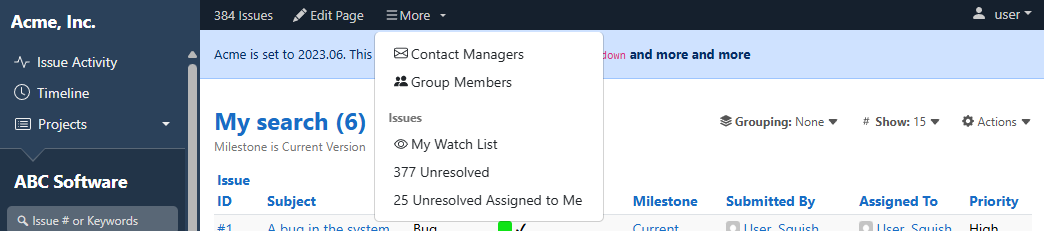
The actions bar will also sometimes contain actions specific to the page, such as page filters, page-specific links, or dropdown menus with more options.
Mobile Navigation
For users on smaller screens and mobile devices, the navigation is condensed and the keyword search is available at the top of the page on all project pages.