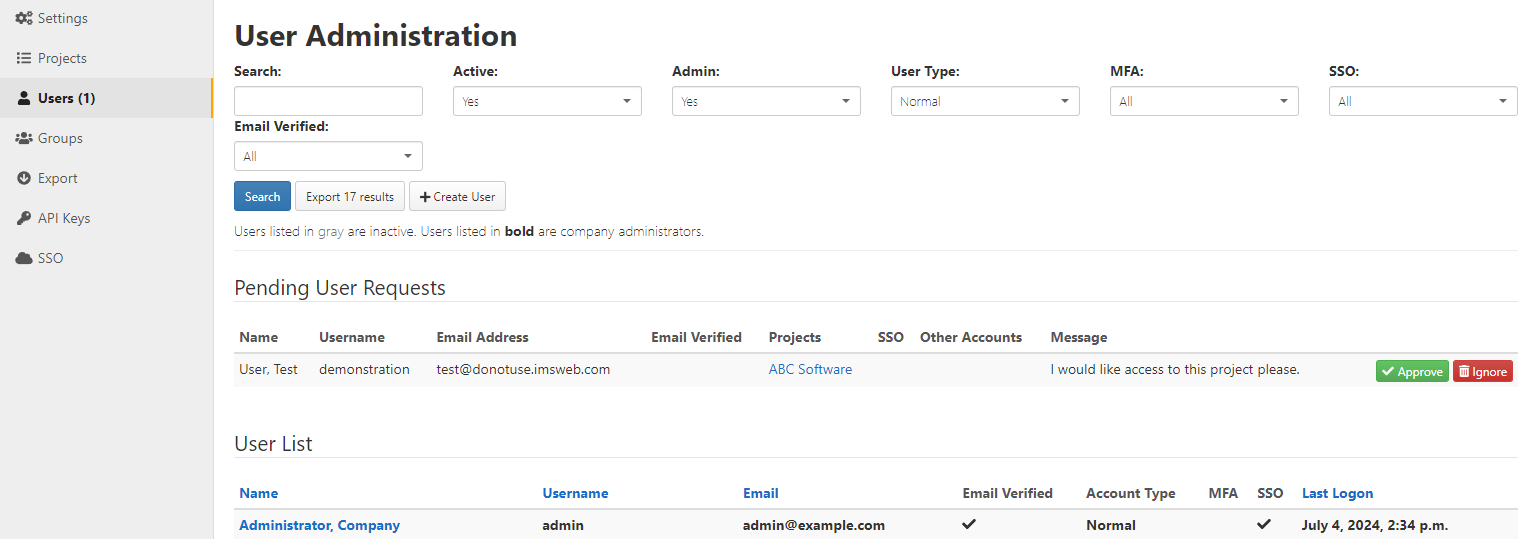
If you are a company administrator, click Admin and select Users to open the User Administration page. This page allows administrators to create new accounts and access user profiles to change passwords or change a user's access to the system. In the menu, the number in parenthesis beside Users indicates the number of pending user requests.
- Search. The search fields allow you to search the users list by selecting attributes to filter on or by keying in a full or partial name or word. The search results highlight the keyword entered in the field. The Pending User Requests table is not searched, however pending users included in the User List are filtered using these criteria.
- Filter options include:
- Active
- Admin
- User Type
- MFA (Multi Factor Authentication)
- SSO
- Email Verified
- By default all active users with a User Type of Normal are displayed.
- When the user list is displayed after editing a user account, any filter criteria you add will be remembered.
- Export. The Export button allows you to export the list of users displayed on the screen.
- Create User. This link, at the top of the page, opens the New User screen for creating users who have not requested accounts.
Emailing Company Announcements
The Send email announcement link can be used to email all users in the company or members of specified Company-wide Groups of important news such as maintenance periods or upcoming holidays. After selecting the link, the User Announcement page will open. The following options are available:
- To. This field is used to designate which users will receive the email. Options include All Users and any Company-wide Groups. Accounts that are marked as service accounts will not receive emails. Only one group may be selected at a time.
- Sender. The user from which the email will be sent.
- Subject. The subject line for the email notification.
- Message. This box is where you can type the body of the email notification. Text can be formatted with either BBCode or Markdown, similar to the formatting options when commenting on an issue.
When finished drafting the email, select the Send Announcement button to immediately send the email. The user who created the announcement and all users included in the To field will be included as BCC email recipients.
Pending User Requests
This section has the names of users who have requested accounts and need approval. The name, username, email, and message are displayed.
If account approval is required, company administrators will receive an email when a new user submits an account request. Requests can be approved or denied by clicking the approve or deny links in the email or by going to the User Administration screen and selecting the Approve or Deny button next to each request. If you approve a request, the user will receive an email with a link to follow to activate his or her account. If the request is denied, the user will receive an email stating that the request was denied.
User List
At the bottom of the page, a list of users is displayed. Each user’s name is a clickable link which opens the Edit User page for that account. Accounts whose username is displayed in gray are inactive or have not signed in for the first time. Bold text indicates that the user has company Administration permission. The table is sortable on all displayed fields.